
Notion Page Chat is setup to process pages stored in your notion, save them to a vectorstore, and interact with them in a chat interface. The Notion processing is run with a custom python script and the chat interface runs with Chainlit.
Background
I built this tool a few years back as a proof of concept for using your own data as context while chatting with AI. I had a use case where I was collaborating with a team and keeping our meeting notes and other project resources in Notion. At that point, Notion’s AI integrations weren’t fully developed. But even more so I was interested in learning about what was possible with AI and this seemed like a fun challenge.
To make it work you’ll need a Notion integration token and OpenAI API key. Full setup details are on the github here
How it Works
This tool is broken into three parts:
- Processing the documentation out of Notion
- Embedding the documentation into a Chroma vector database
- Accessing the database for context during a chat session
Processing Notion Docs
Notion allows you to create custom integrations, which provide you a token for accessing your documentation via their API. It returns information about each block, that look something like this:
  {
    "object": "block",
    "id": "2c21cd0c-6137-8080-a17d-d6d3ea313835",
    "parent": {
      "type": "page_id",
      "page_id": "2c21cd0c-6137-80df-8018-d3a219ae91b0"
    },
    "created_time": "2025-12-07T23:16:00.000Z",
    "last_edited_time": "2025-12-07T23:16:00.000Z",
    "created_by": {
      "object": "user",
      "id": "6a405e7f-6ad0-4932-8f6b-f5bb2980d6b0"
    },
    "last_edited_by": {
      "object": "user",
      "id": "6a405e7f-6ad0-4932-8f6b-f5bb2980d6b0"
    },
    "has_children": false,
    "archived": false,
    "in_trash": false,
    "type": "paragraph",
    "paragraph": {
      "rich_text": [
        {
          "type": "text",
          "text": {
            "content": "Names of buckets have to be globally unique names",
            "link": null
          },
          "annotations": {
            "bold": false,
            "italic": false,
            "strikethrough": false,
            "underline": false,
            "code": false,
            "color": "default"
          },
          "plain_text": "Names of buckets have to be globally unique names",
          "href": null
        }
      ],
      "color": "default"
    }
  }
That comes with a lot of metadata that may not be relevant to the types of questions we’d ask a chatbot. So instead of saving all of this data, I setup a python script to work recursively through each block in our Notion pages and save the text information from these blocks to essentially copy our Notion documentation in txt format.
For example, that block came from a Notion page called 03-Storage, and is now saved locally in a 03-Storage.txt file like:
  ## Buckets
  Buckets are directories. Objects are files
  Names of buckets have to be globally unique names <<--- This line
Note: This can take a while if you give the integration access to a lot of pages, as it works through each block.
Vectorizing Information
This piece has been the part I’ve enjoyed learning the most. After generating our txt files from Notion documents, we persist them in a Chroma vector database. If you haven’t heard of vector databases before I encourage you to check out this blog post by Pavan Belagatti.
To briefly touch on how it is used in this tool, we take the processed txt files from Notion and create vectorized embeddings of the text, storing this in a Chroma vector database. This stores them in a way that allows for doing “similarity” searches based on the prompt you provide. If this sounds familiar, it could be because this is a pretty basic “Retrieval-Augmented Generation (RAG)” flow. You can learn more about RAG in this video.
For example, if I tell the chat prompt to summarize my notes on AWS storage, it looks for text embeddings saved in the database related to AWS storage. In this case, the information in my 03-Storage page will return high on that list and return that context for use with a large language model.
Creating Embeddings and Loading Data
To actually create the embeddings to save in the Chroma database I split the text files into smaller chunks, then pass through LangChain’s OpenAI embedding function (this requires an OpenAI API).
  # Import function
  from langchain_openai import OpenAIEmbeddings

  # Establish embedding setting
  embeddings = OpenAIEmbeddings(
    model="text-embedding-3-small",
    openai_api_key=openai_token
  )

  # Load text embeddings to Chroma
  docsearch = Chroma.from_texts(
    texts_to_add,
    embeddings,
    metadatas=metadatas_to_add,
    ids=ids_to_add,
    persist_directory=chroma_dir
  )
Note: Chroma can run in memory or you can persist locally for re-use.
Interactive Chat
I’m using Chainlit for the chat piece of this tool. Chainlit is an open-source Python package for conversational AI which makes life super easy by giving you a template for quick setup. You can find the documentation here.
For my implementation here, I have setup methods for handling launching the app and reponding to messages/questions.
Process Docs on Launch
Once the documents are processed out of Notion and saved locally, you can launch the Chainlit chat app by running chainlit run notion_chat.py.
This launches the app, and part of that launch process includes setting up the Chroma database. If one is not already in the expected directory, it creates and loads the embeddings via the method listed above. If new source text files have been added since the last launch it will load those.
Handling Messages
The key functionality when you ask a question is the app will both refer to the history of that chat session and the Chroma vector database for relvant context to give to the language model. It prepares this information in message like the code below:
# Get chat history
history = get_history(session_id)

# Retrieve relevant documents
docs = retriever.invoke(message.content)

# Format context from retrieved docs
context = "\n\n".join(doc.page_content for doc in docs)

# Build the prompt with chat history
messages = [
    ("system",
      "You are a helpful assistant. Answer using ONLY the provided context. "
      "If no relevant context is provided, say you do not know.\n\n"
      f"Context:\n{context}")
]

# Add chat history
for msg in history.messages:
    if isinstance(msg, HumanMessage):
        messages.append(("human", msg.content))
    elif isinstance(msg, AIMessage):
        messages.append(("assistant", msg.content))

# Add current question
messages.append(("human", message.content))
We can then send that generated messages as a propt to the language model and await a response:
prompt = ChatPromptTemplate.from_messages(messages)
chain = prompt | llm | StrOutputParser()

answer = await chain.ainvoke({})
Note: I’ve also included in the output the source(s) pulled from the metadata, that in this case will link back to your Notion documentation.
Note: I’m not using a streaming setup, meaning the whole response will load from OpenAI before printing the response. With streaming the response would print out as the response is generated, leading to a better user experience.
Results
You can see the project demo at the top of this write-up, but to reiterate in more detail, launching the chainlit app first loads, adds to, or creates the vectorstore. Once this is complete the app will open in a new window running on localhost port 8000.

Once launched you can ask a question or request something about your Notion documentation. The question will be bundled with the history and context and sent as a prompt to OpenAI’s API. The response will be returned when it is fully loaded.
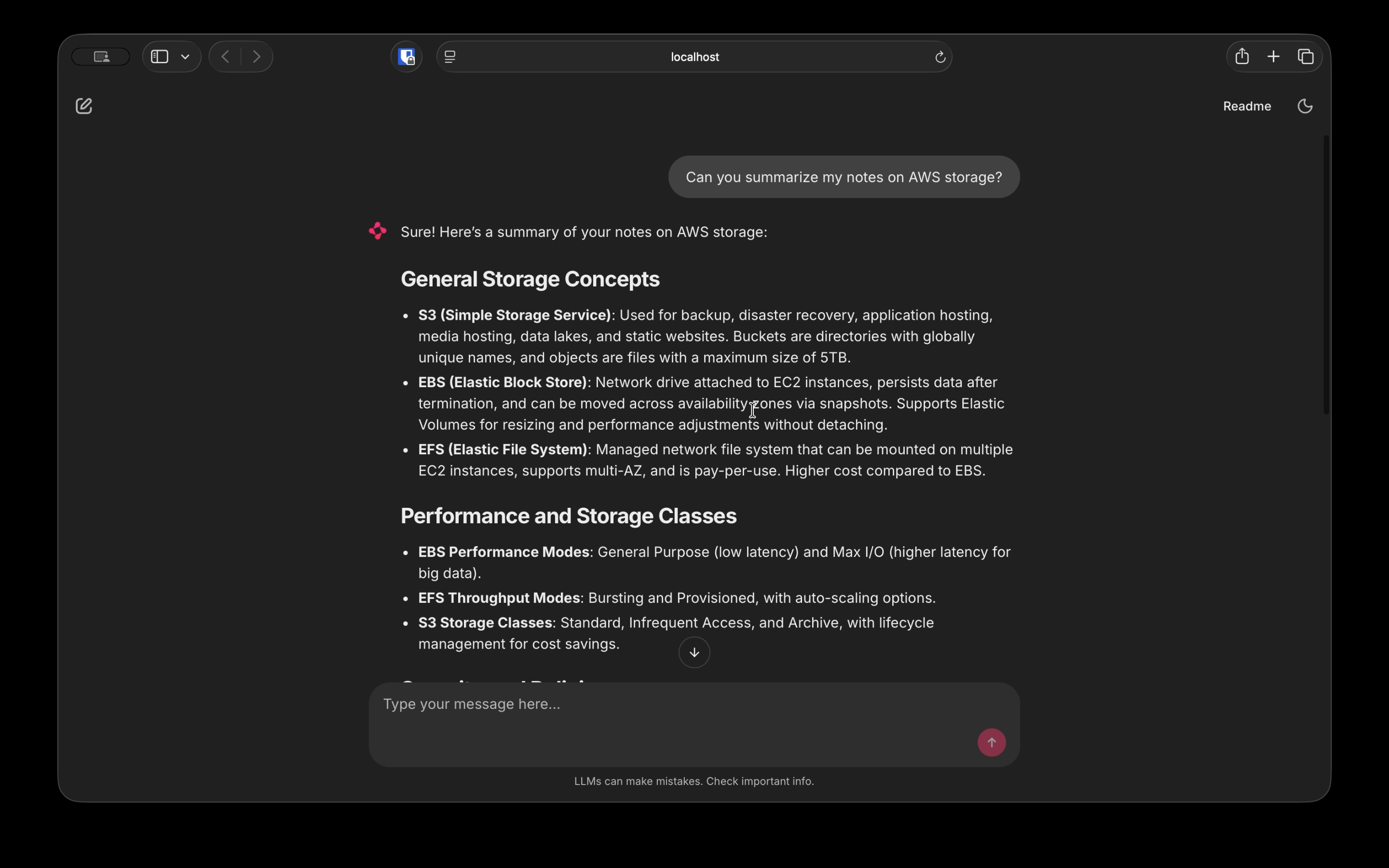
If applicable, the related sources appear at the bottom of the response.

Building and Updating Thoughts
As mentioned above, I built this tool a few years ago. It wasn’t to publish as a production ready-tool, but as a way to easier access my Notion documentation and learn some cool things about AI. Even now I’m not sharing this to make it a production grade tool. I’m sure you can use Notion’s AI features, or a connection via Claude Code to do that much more directly.
I wanted to share this in case somebody is looking for some building blocks to build out some AI tools of their own. But the tricky part was to share it I had to make sure it still worked. Unfortunately, most of langchain has changed ALOT since I built this and it required a ton of updates.
Vibe-Coding Updates
To be as quick as possible, I mostly use Claude to guide me on the new imports and functions. As you’d expect it was a lot faster, but I have to admit it was way less satisfying. When I first build this tool, I had to spend a lot time looking at existing repos and reading through the documentation on Langchain, Chainlit, etc. This time I chose speed over detail. That’s a trade-off I’ll be thinking about more and more as I try to get back into building more fun tools again.
Shoutout / Citation
Thanks to you for checking this out! And a big shoutout to this repo, which my work was originally forked off of. I relied on this heavily for the vectorstore foundation, but I’m not sure if it is kept up to date with the latest langchain changes either.
Technologies Used
- Python
- Langchain
- Chainlit
- ChromaDB
- ChatGPT